2018年初,想要重新建博客,于是用Github+hexo搭建了本博客。使用hexo本地搭建页面,再push到Github仓库。本文记录了使用Github+hexo搭建个人博客的过程及遇到的问题。
环境
- window系统
- 已安装git
- 已安装Node.js
准备hexo
安装hexo
1 | $ npm i hexo-cli -g |
检查hexo是否安装成功
1 | $ hexo |
提示找不到命令,于是增加环境变量,为hexo安装路径的bin目录: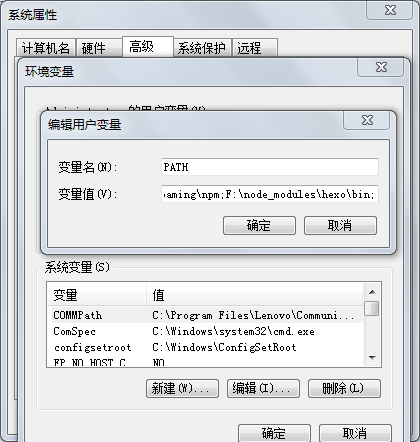
之后成功响应。
初始化hexo
新建一个空文件夹,我命名为hexo,进入hexo目录,打开git Bash,初始化hexo1
$ hexo init
生成项目目录如下: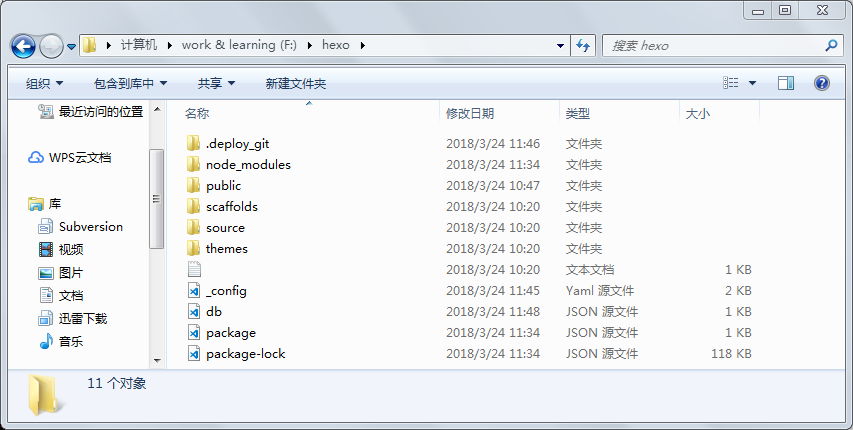
安装hexo插件1
$ npm i hexo-deployer-git --save
安装过程中出现问题:
出现这个问题可能是由于npm cache,于是对npm cache进行清理:1
$ npm cache clean --force
之后正常安装。
使用hexo
此时可以创建页面了1
$ hexo g # hexo generate
成功生成页面后,进行本地预览1
$ hexo s # hexo server
看到以下画面,说明本地页面搭建成功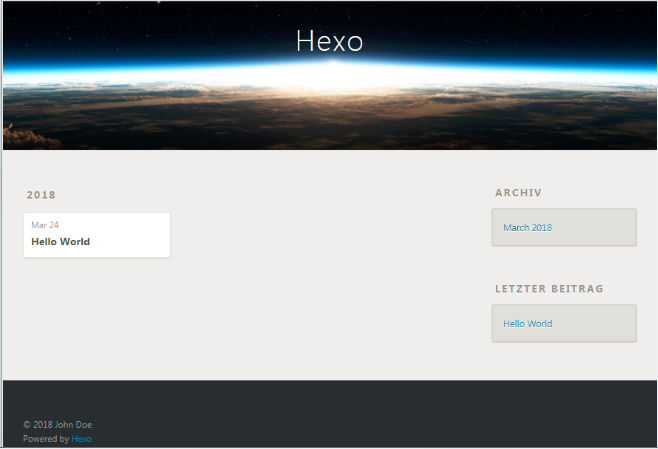
需要新建一个文章时输入命令:1
$ hexo new “name”
需要在项目的source目录下新建一个页面时输入命令:1
$ hexo new page “name”
当重新编辑页面时,在本地调试1
2$ hexo g #当修改配置时,需要执行这一步
$ hexo s --debug
推送上Github命令1
$ hexo d # hexo deploy
清除缓存1
$ hexo clean
增加图片
需要在文章中增加图片时,可以直接插入html代码,也可以使用MarkDown语法:
图片存在根目录source下的imgs目录,也可使用外链
1 | <img src="/imgs/index.png" width = "800" height = "200" alt="图片名称" align=center /> |
hexo详细命令查看: hexo api
准备Github
准备repository
新建的repository名字要与账号对应,格式:huanglcat.github.io
设置SSH
这时需要将Github连接本地,设置SSH。设置SSH有多种方法,我使用了git命令来生成秘钥,首先在本地创建SSH KEYS(邮箱为github注册邮箱,之后要去确认路径和输入密码,一路回车就可以):
1 | $ ssh-keygen -t rsa -C "email@xx.com" |
成功的话会在 ~/下生成 .ssh文件夹,进去(设置的SSH可以在c盘中的用户目录中找到),打开 id_rsa.pub,复制里面的key粘贴到setting中的key输入框中。
输入 eval "$(ssh-agent -s)" ,添加密钥到ssh-agent,再输入 ssh-add ~/.ssh/id_rsa ,添加生成的SSH key到ssh-agent
1 | $ eval "$(ssh-agent -s)" |
出现“you`re successfully authenticated”即设置成功
修改配置
修改hexo配置
修改项目根目录下的“_config.yml”文件1
2
3
4
5
6
7
8
9
10
11
12
13
14
15
16
17
18
19
20
21
22
23
24
25
26
27
28
29
30
31
32
33
34
35
36
37
38
39
40
41
42
43
44
45
46
47
48
49
50
51
52
53
54
55
56
57
58
59
60
61
62
63
64
65
66
67
68
69
70
71
72
73
74
75
76
77
78
79
80
81
82
83# Hexo Configuration
## Docs: https://hexo.io/docs/configuration.html
## Source: https://github.com/hexojs/hexo/
# Site
title: Emma的博客 # title
subtitle:
description: 桌上有刀,桌下有猫 #网站描述
keywords:
author: Emma
language: zh-Hans
timezone:
# URL
## If your site is put in a subdirectory, set url as 'http://yoursite.com/child' and root as '/child/'
url: http://huanglcat.github.io #注意修改此处链接
root: /
permalink: :year/:month/:day/:title/
permalink_defaults:
# Directory
source_dir: source
public_dir: public
tag_dir: tags
archive_dir: archives
category_dir: categories
code_dir: downloads/code
i18n_dir: :lang
skip_render:
# Writing
new_post_name: :title.md # File name of new posts
default_layout: post
titlecase: false # Transform title into titlecase
external_link: true # Open external links in new tab
filename_case: 0
render_drafts: false
post_asset_folder: false
relative_link: false
future: true
highlight:
enable: true
line_number: true
auto_detect: false
tab_replace:
# Home page setting
# path: Root path for your blogs index page. (default = '')
# per_page: Posts displayed per page. (0 = disable pagination)
# order_by: Posts order. (Order by date descending by default)
index_generator:
path: ''
per_page: 10
order_by: -date
# Category & Tag
default_category: uncategorized
category_map:
tag_map:
# Date / Time format
## Hexo uses Moment.js to parse and display date
## You can customize the date format as defined in
## http://momentjs.com/docs/#/displaying/format/
date_format: YYYY-MM-DD
time_format: HH:mm:ss
# Pagination
## Set per_page to 0 to disable pagination
per_page: 10
pagination_dir: page
# Extensions
## Plugins: https://hexo.io/plugins/
## Themes: https://hexo.io/themes/
theme: next
# Deployment
## Docs: https://hexo.io/docs/deployment.html
deploy: # 注意修改deploy
type: git
repo: git@github.com:huanglcat/huanglcat.github.io.git
branch: master
注意:配置文档的冒号“:”后必须要有一个空格,否则会报错
push到Github
首先配置git1
2$ git config --global user.email "emai@xxx.com"
$ git congif --global user.name "huanglcat"
然后执行以下命令1
2$ hexo g
$ hexo d
在浏览器查看:huanglcat.github.com,可以看到一个hexo默认主题的页面(当看到404时,试试清除缓存)
修改主题
更换主题
首先将看好的主题克隆下来,
1 | $ git clone https://github.com/theme-next/hexo-theme-next themes/next |
然后修改项目根目录下的”_config.yml”
1 | theme: next |
这时主题已经更换为next了,而next主题中有几种外观可以更换,找到根目录下的themes下的next主题目录,在其中的“_config.yml”配置文件中修改:
1 | # Schemes |
修改目录
当前目录只有首页和归档,next中可以增加目录,在next主题的“_config.yml”中修改:
1 | menu: |
注意,除了home和archives,其他目录都需要自己创建页面:
1 | $ hexo new page “tags” |
创建之后页面在项目根目录的source目录下生成,之后还需修改页面类型:
1 | --- |
增加头像
在主题中增加头像,可以使用本地增加图片也可以用外链。在本地增加先在next目录的source目录下新建文件夹“uploads”,增加图片;
在next主题的“_config.yml”中修改:
1 | avatar: /uploads/avatar.jpg |
首页折叠
此时,博客首页的文章是全部显示的,需要将文章进行折叠,在文章需要折叠的内容之前增加代码
1 | <!--more--> |
此时首页文章已经折叠了: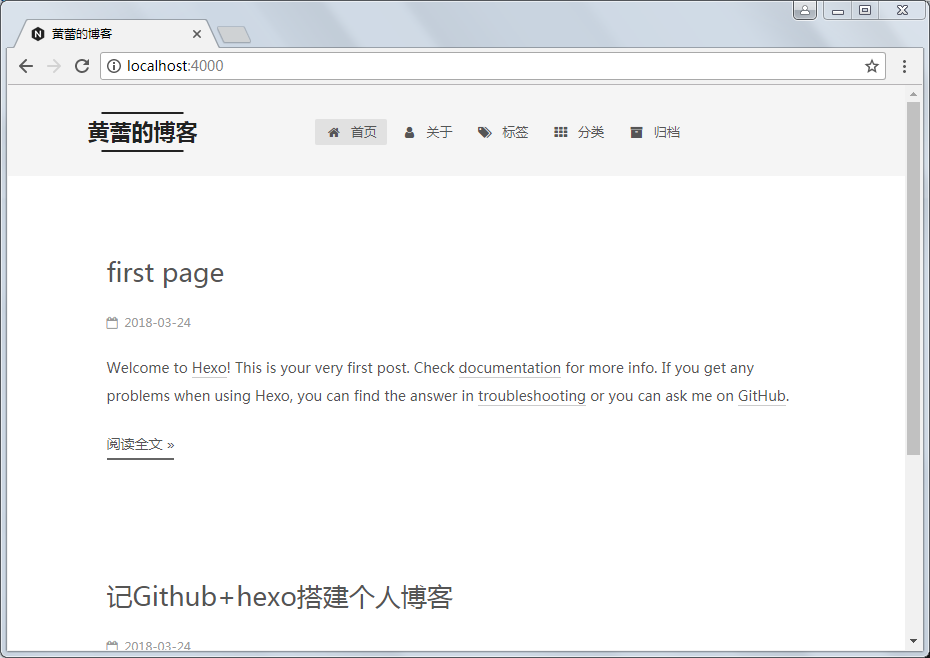
参考: